Module - Body Controller - Security (Remove and Replace)
Correction code 1745400217454002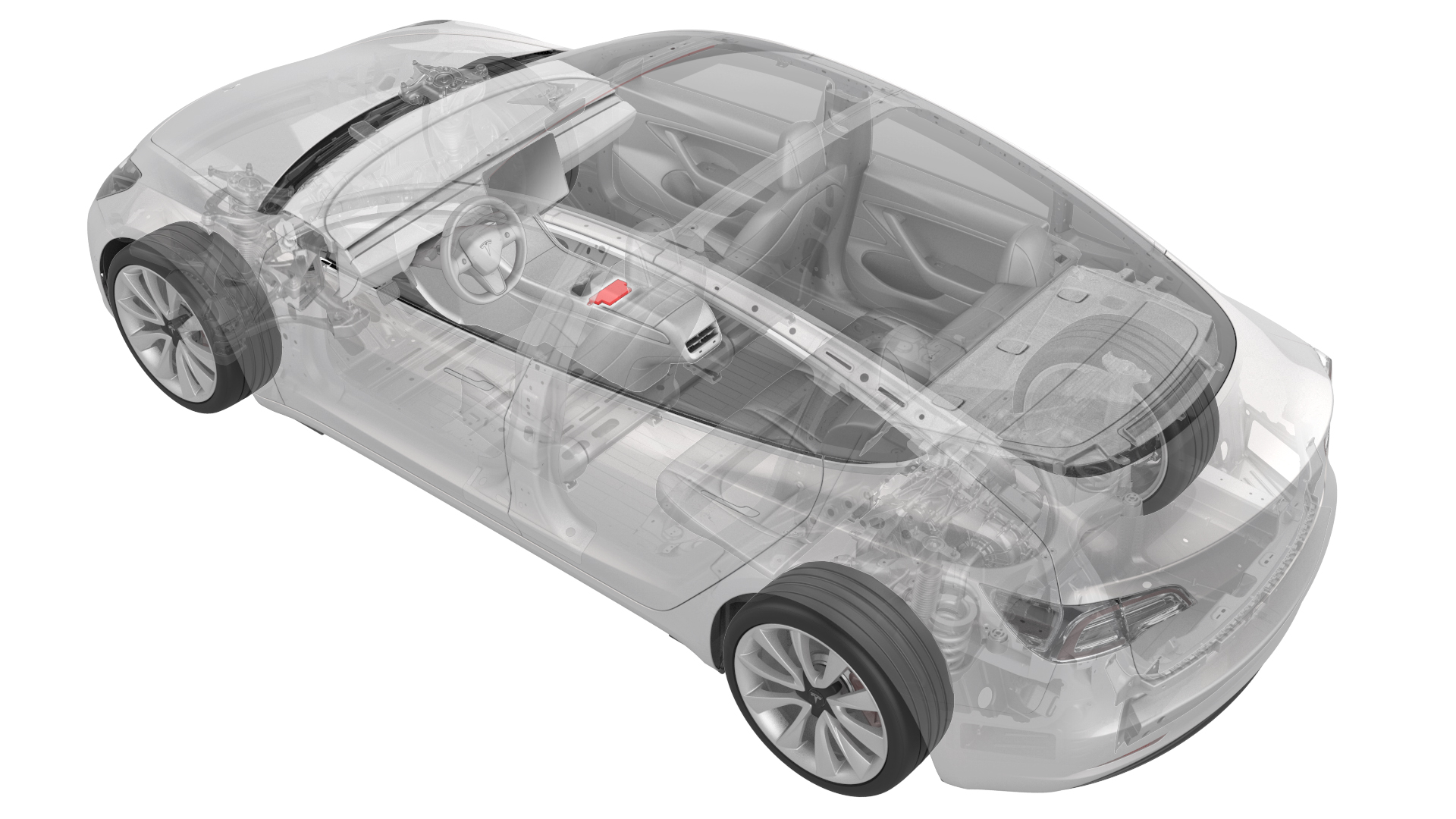
Remove
-
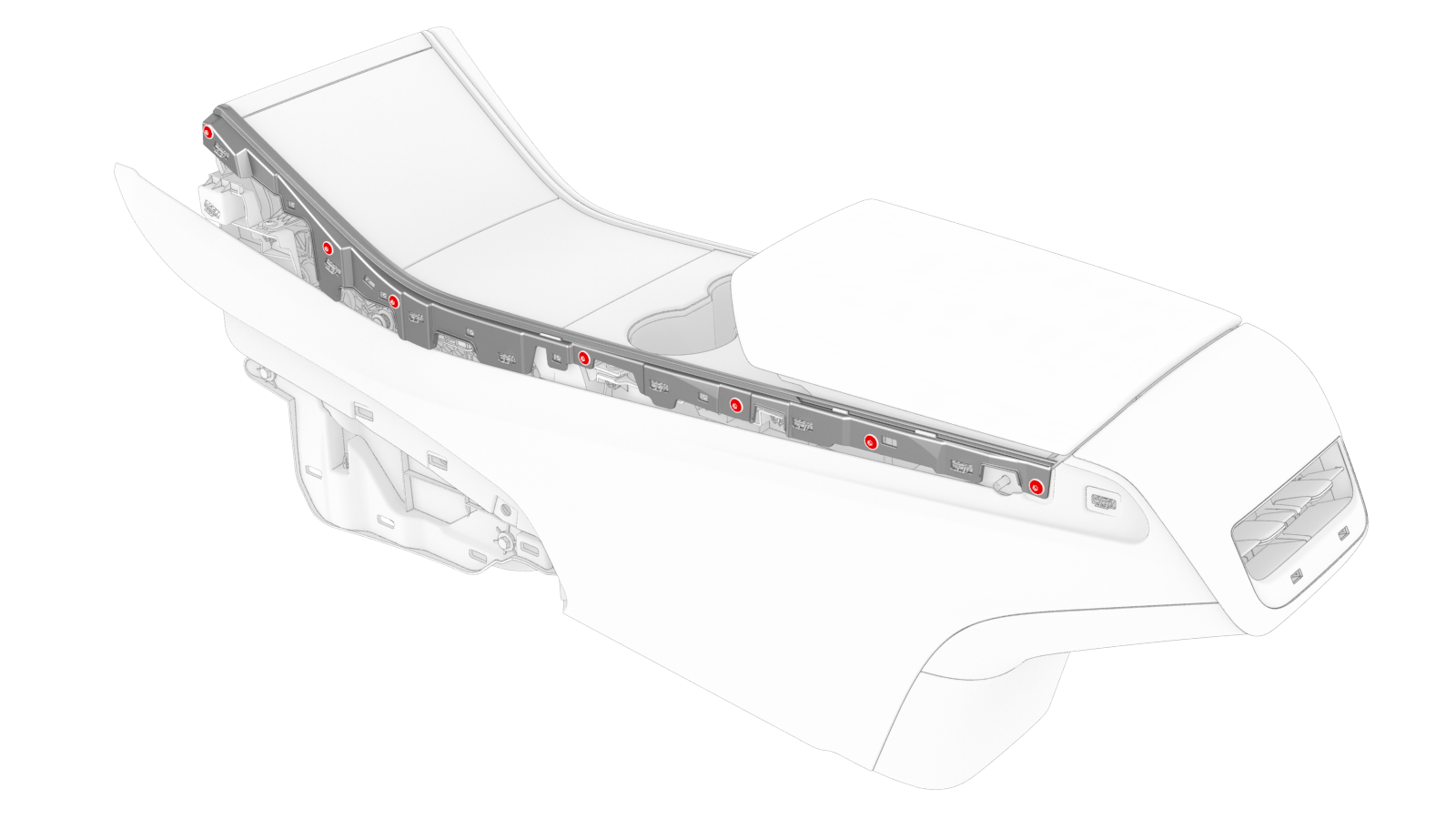
Remove the screws and release the tabs that attach the LH bright strip to the center console, and then remove the strip from the console. Repeat this step to remove the RH bright strip.
LH shown, RH similar
-
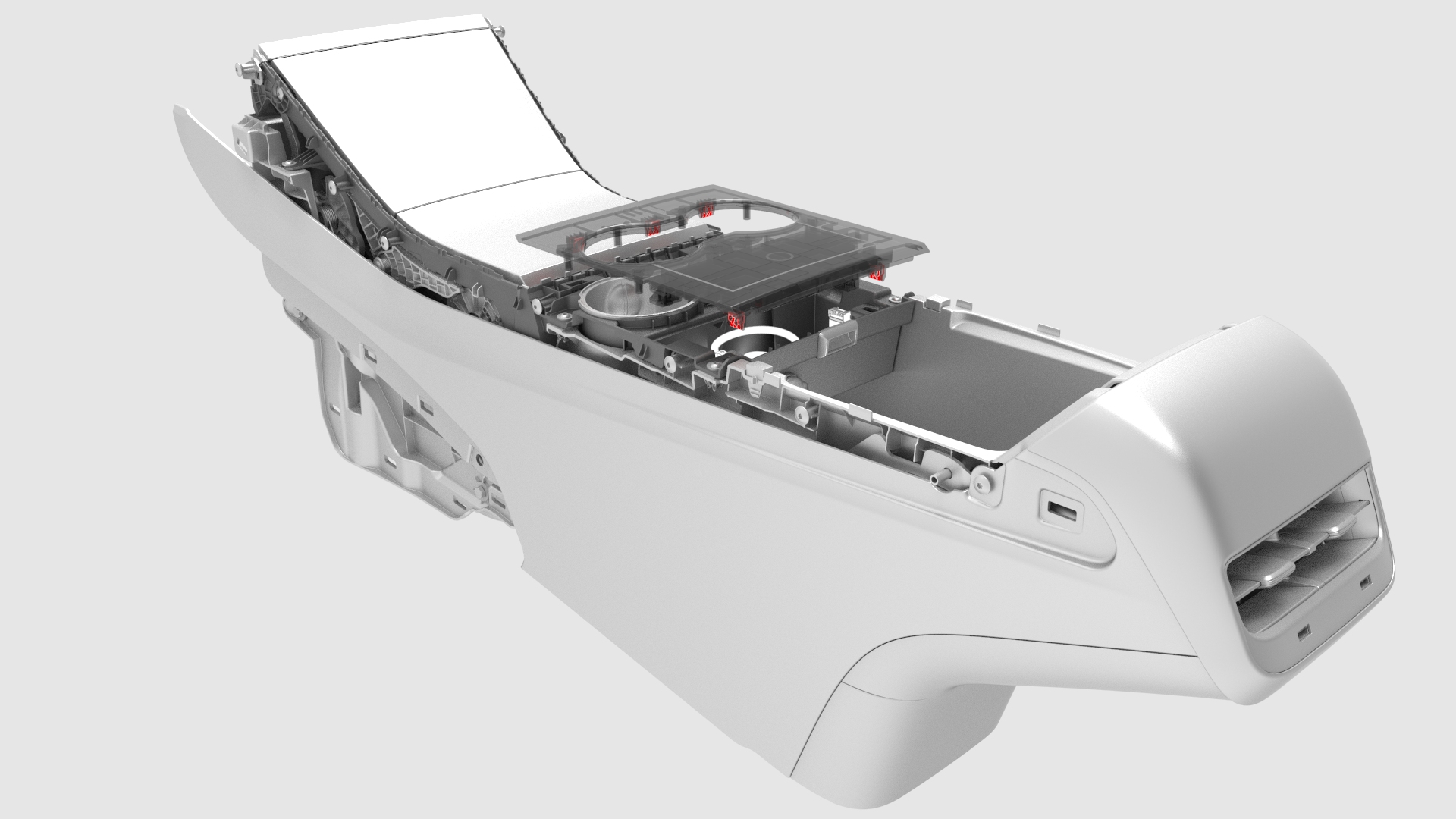
Release the clips (x6) that attach the cup holder decor panel to the cup holder assembly, and then separate the cup holder decor panel from the center console assembly.
-
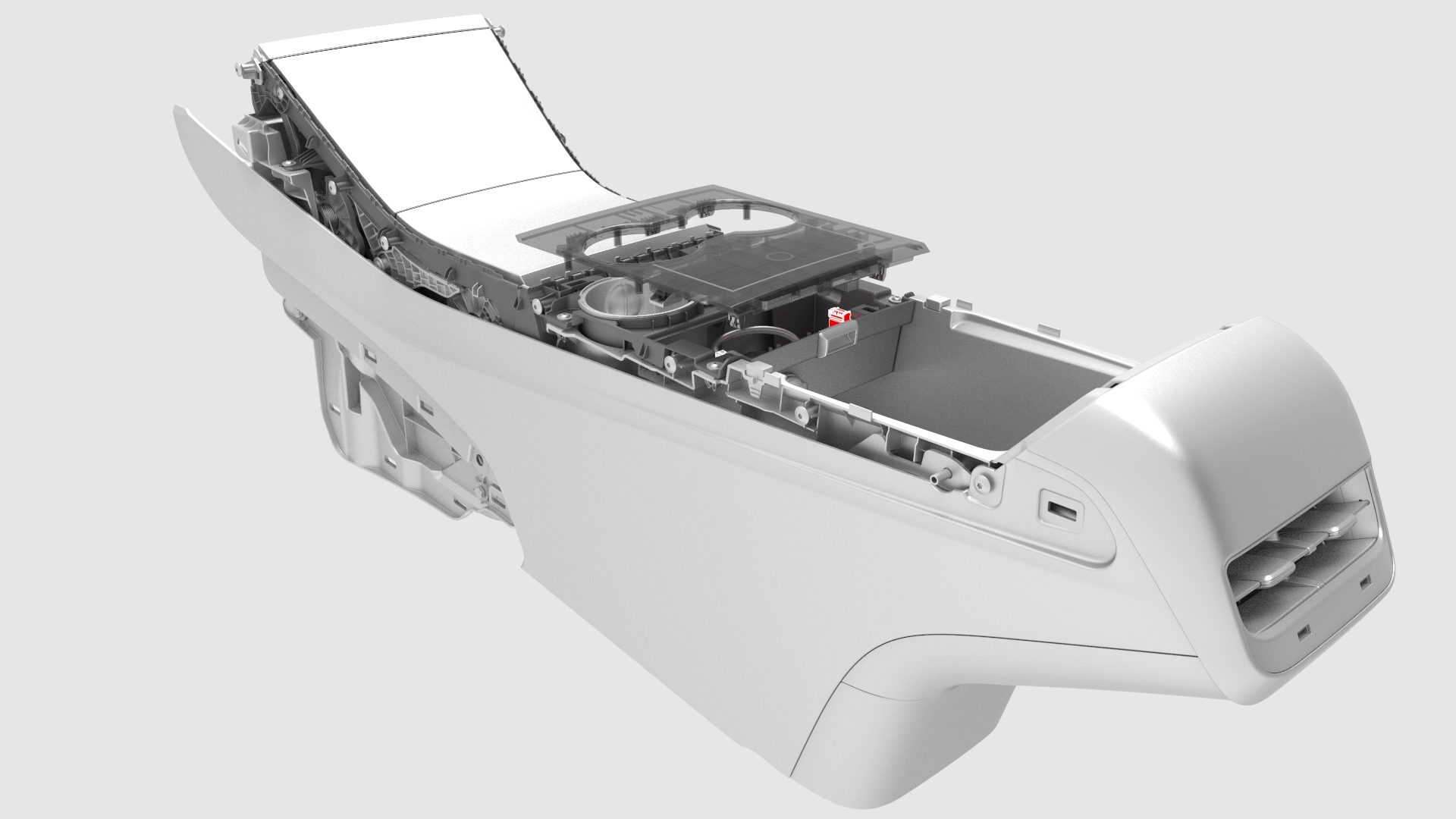
Disconnect the electrical connector from the security body controller module, and then remove the cup holder decor panel from the vehicle.
-
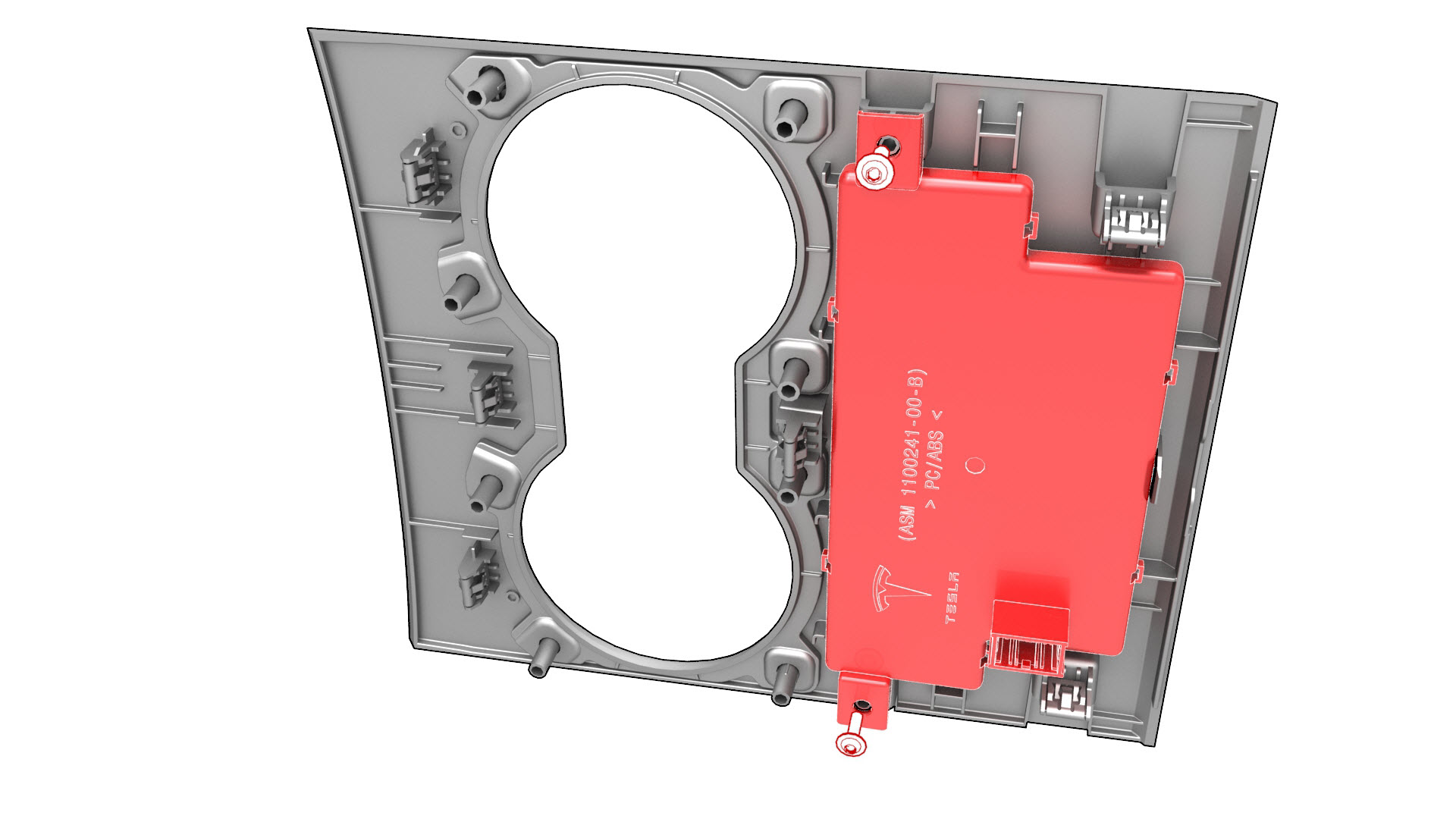
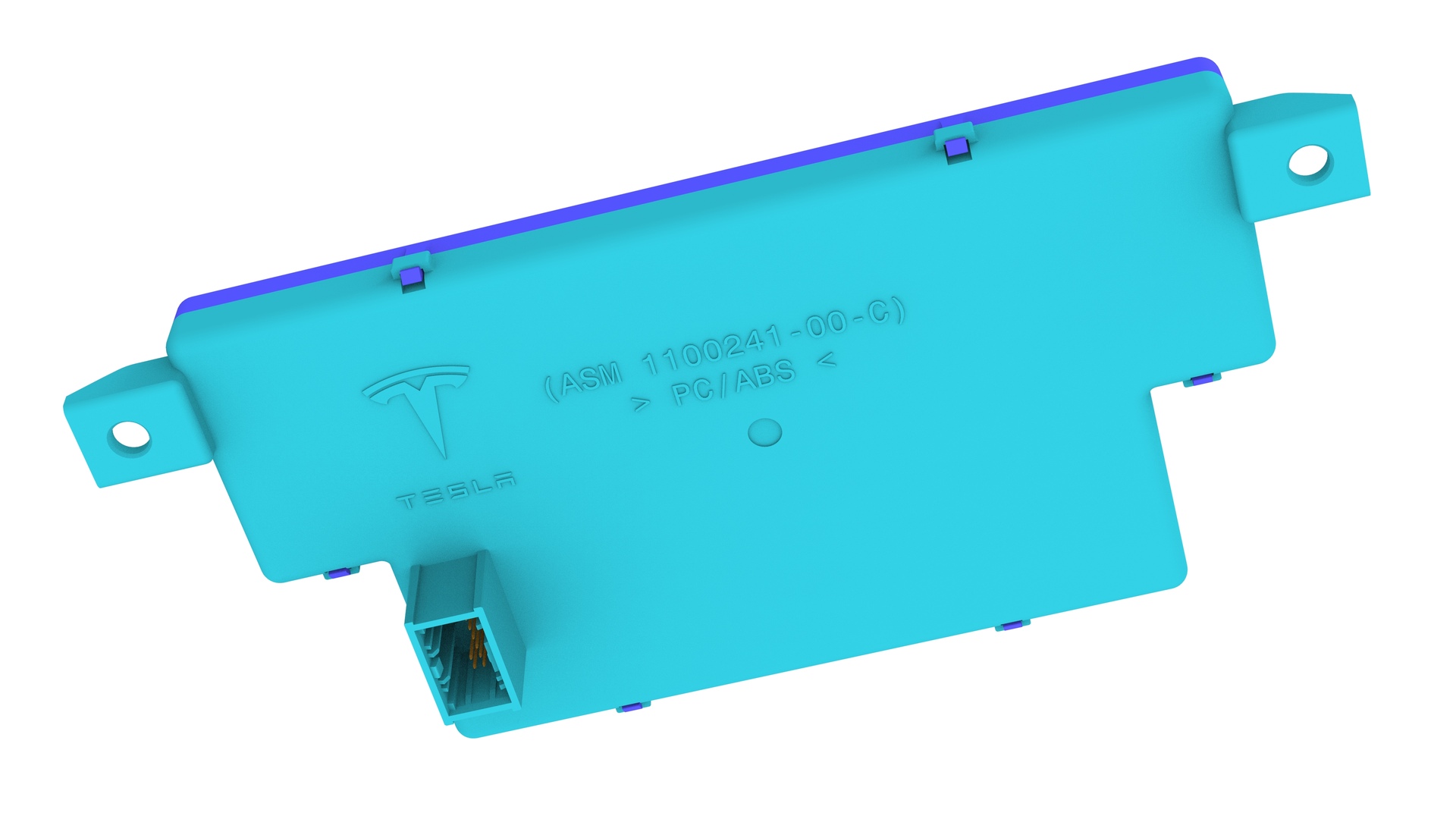
Remove the screws that attach the security body controller module to the cup holder decor panel, and then remove the security body controller module from the panel.
| 1 | Open all doors and lower all windows. | ||
| 2 | Remove the 2nd row lower seat cushion. See Seat Cushion - Lower - 2nd Row (Remove and Replace). | ||
| 3 | Move the driver seat and front passenger seat fully rearward. | ||
| 4 | Disconnect 12V power. See 12V Power (Disconnect and Connect). | ||
| 5 | Open the armrest. | ||
| 6 | Remove the LH and RH center console decor trims. See Decor Trim - Center Console (Remove and Replace). | ||
LH shown, RH similar | 7 | Remove the screws and release the tabs that attach the LH bright strip to the center console, and then remove the strip from the console. Repeat this step to remove the RH bright strip. | |
| 8 | Release the clips (x6) that attach the cup holder decor panel to the cup holder assembly, and then separate the cup holder decor panel from the center console assembly. | |
| 9 | Disconnect the electrical connector from the security body controller module, and then remove the cup holder decor panel from the vehicle. | |
| 10 | Remove the screws that attach the security body controller module to the cup holder decor panel, and then remove the security body controller module from the panel. |
Install
-
Install the screws (x2) that attach the security body controller module to the cup holder decor panel.
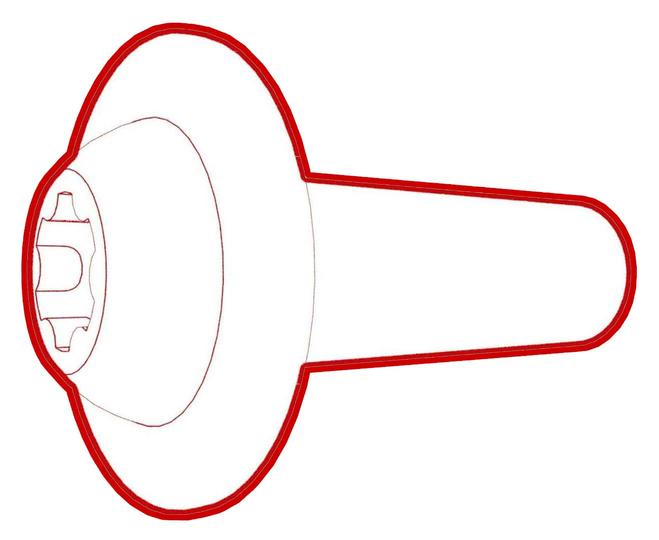 Torque 1.6 Nm
 -
Connect the electrical connector to the security body controller module.
-
Attach the clips (x6) that attach the cup holder decor panel to the center console assembly.
-
Install the screws (x7) that attach the RH bright strip to the center console assembly. Repeat this step on the LH bright strip.
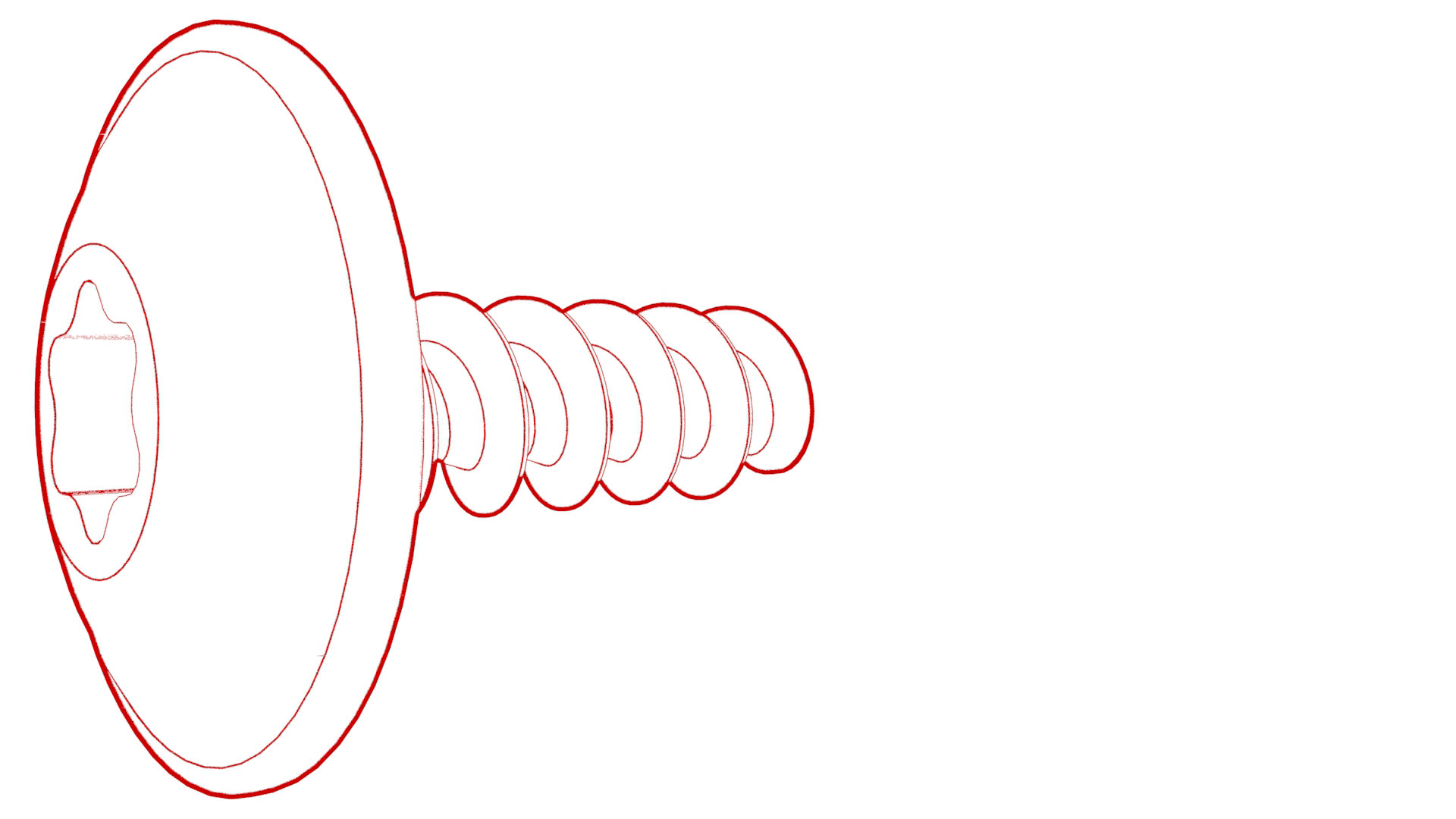 Torque 1.6 Nm
LH shown, RH similar
-
From the SUMMARY tab, click Delete VCSEC Certificate, and then click OK on the pop up window.
 Caution:This action CANNOT be undone.Note: This action will remove associated VCSEC certificate from the server.
| 1 | Install the screws (x2) that attach the security body controller module to the cup holder decor panel. Torque 1.6 Nm | |
| 2 | Connect the electrical connector to the security body controller module. | |
| 3 | Attach the clips (x6) that attach the cup holder decor panel to the center console assembly. | |
| 4 | Install the RH bright strips: Start with the corner nearest to the IP carrier, and then continue towards the rear. Repeat this step on the LH bright strip. | ||
LH shown, RH similar | 5 | Install the screws (x7) that attach the RH bright strip to the center console assembly. Repeat this step on the LH bright strip. Torque 1.6 Nm | |
| 6 | Install the RH center console decor trim, and then repeat this step on the LH center console decor trim. See Decor Trim - Center Console (Remove and Replace). | ||
| 7 | Reconnect 12V power, but do not install the rear underhood apron at this time. See 12V Power (Disconnect and Connect). | ||
| 8 | Connect a laptop with Toolbox to the vehicle. | ||
| 9 | In Toolbox, type "VCSEC" in the search tab. Note: Make sure "Actions" is selected, if not already.
| ||
| 10 | In Toolbox, click the play button next to the "PING-TP_VCSEC" and select Run. Note: This action will ensure communication with the newly installed VCSEC.
| ||
| 11 | Use Toolbox to update the vehicle firmware. | ||
| 12 | Log into Garage using the laptop, and then search for the VIN or vehicle nickname. | ||
| 13 | From the SUMMARY tab, click Delete VCSEC Certificate, and then click OK on the pop up window. Caution: This action CANNOT be undone.
Note: This action will remove associated VCSEC certificate from the server.
| ||
| 14 | In Toolbox, click the play button next to "PROC_VCSEC_X_PROVISIONING" and select Run. Note: This action secures VCSEC by exchanging encryption keys and certificate with Tesla and the vehicle.
Note: Customer's phone will need to be re-paired to the vehicle after completing this entire procedure.
| ||
| 15 | In Toolbox, click the play button next to "TEST-SELF_VCSEC_X_ENDPOINT-COMM" and select Run. Note: This action checks endpoint communication ability.
| ||
| 16 | In Toolbox, click the play button next to "repair_network.ODIN_VCSEC_pairNFCCard" and select Run. | ||
| 17 | Put the NFC key cards on the center console behind the cup holders. Note: 2 NFC key cards are required when pairing, either 2 NFC key cards that have never been programmed, or one programmed NFC key card and one that has never been programmed.
| ||
| 18 | In Toolbox, type the number of key cards to be paired to the vehicle, and then select Run Network. | ||
| 19 | In Toolbox, select the environment/garage type for the vehicle. Note: If the routine fails, select retry.
| ||
| 20 | Check the function of the new programmed NFC card keys: Tap each of the NFC key cards on the LH exterior B-pillar area to lock and unlock the vehicle, and then put one NFC key card at a time on the center console behind the cup holders and step on the brake pedal to start the vehicle. | ||
| 21 | In Toolbox, type "IMMOBILIZER" in the search tab. | ||
| 22 | In Toolbox, click the play button next to "PROC_DI_X-IMMOBILIZER" and select Run. Note: This action will pair new VCSEC with DI to the initialize the immobilizer.
| ||
| 23 | In Toolbox, type "ODOMETER" in the search tab. | ||
| 24 | In Toolbox, click the play button next to "PROC-DID_DI_VEHICLE-ODOMETER" and select Run. | ||
| 25 | In Toolbox, type "RESET_DI" in the search tab. | ||
| 26 | In Toolbox, click the play button next to "TEST-RESET_DI" and select Run. Note: This action runs a routine to clear alerts.
Note: Make sure to select routine for "DI UDS ECU Reset."
| ||
| 27 | Disconnect the laptop from the vehicle. | ||
| 28 | Install the rear underhood apron. See Underhood Apron - Rear (Remove and Replace). | ||
| 29 | Close the hood. | ||
| 30 | Move the driver seat and front passenger seat fully forward. | ||
| 31 | Install the 2nd row lower seat cushion. See Seat Cushion - Lower - 2nd Row (Remove and Replace). | ||
| 32 | Restore the driver seat and front passenger seat back to their original position. |